> ## Documentation Index
> Fetch the complete documentation index at: https://extension.js.org/llms.txt
> Use this file to discover all available pages before exploring further.
# 用 ESLint 維持程式碼品質
> 以 ESLint 維持擴充功能程式碼品質的一致性。ESLint 在 Extension.js 建置 pipeline 之外執行,透過你的 scripts 或 CI 取得可預期的結果。
在問題進入執行階段前,先讓擴充功能的程式碼品質維持可預期。ESLint 在建置 pipeline 之外執行,透過你的 scripts 或持續整合(CI)來呼叫。
## 什麼情況下適合使用 ESLint
* 你希望團隊貢獻時維持一致的程式碼規範。
* 你需要 CI 檢查,及早攔截常見的 JS/TS 錯誤。
* 你想在發佈前強制套用擴充功能專屬的品質規則。
## ESLint 能做到的事
| 能力 | 帶來什麼好處 |
| ---------------------------- | ----------------------------------------------- |
| JavaScript 與 TypeScript 語法檢查 | 抓出常見錯誤並強制套用專案規範 |
| Flat config 支援 | 在新專案中使用現代的 `eslint.config.mjs` |
| 適合 CI 的執行方式 | 在本機 scripts 與 pull request pipeline 中執行 lint 檢查 |
| 擴充功能專屬規則集 | 當團隊需要更嚴格的檢查時,加入瀏覽器擴充功能相關的 plugin/規則 |
## 範本範例
### ESLint 設定範本
預先設定好的 lint 範本,可直接使用。
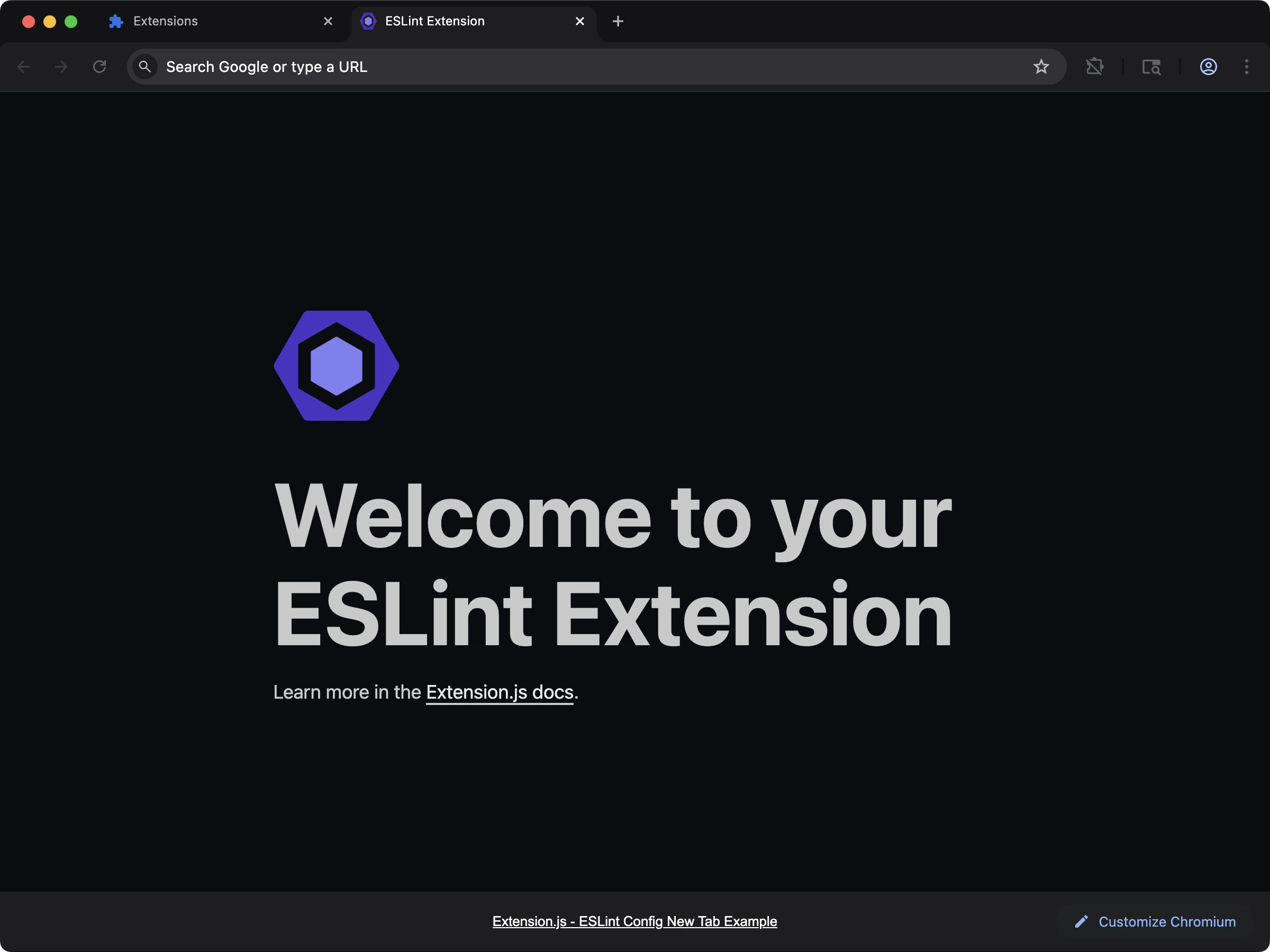 ```bash npm theme={null}
npx extension@latest create my-extension --template=new-config-eslint
```
```bash pnpm theme={null}
pnpx extension@latest create my-extension --template=new-config-eslint
```
```bash yarn theme={null}
yarn dlx extension@latest create my-extension --template=new-config-eslint
```
```bash bun theme={null}
bunx extension@latest create my-extension --template=new-config-eslint
```
```bash bun theme={null}
bunx extension@latest create my-extension --template=new-config-eslint
```
Repository: [examples/new-config-eslint](https://github.com/extension-js/examples/tree/main/examples/new-config-eslint)
## 在既有擴充功能中使用
安裝核心套件:
建立 `eslint.config.mjs`:
```js theme={null}
import globals from "globals";
import pluginJs from "@eslint/js";
import tseslint from "typescript-eslint";
export default [
{ files: ["**/*.{js,mjs,cjs,ts,tsx,jsx}"] },
{
languageOptions: {
globals: globals.browser,
},
},
pluginJs.configs.recommended,
...tseslint.configs.recommended,
];
```
從你的 scripts 執行 lint 指令:
```bash npm theme={null}
npm run lint
```
```bash pnpm theme={null}
pnpm lint
```
```bash yarn theme={null}
yarn lint
```
```bash bun theme={null}
bun run lint
```
```bash bun theme={null}
bun run lint
```
如果還沒有對應的 script,可直接執行:
## 最佳實務
* 把 lint 規則放進原始碼控管,並在 CI 中套用。
* 使用 lint-staged 或 pre-commit hook,以取得更快的本機回饋。
* 只在需要時才加入框架專屬的 plugin(例如 React)。
## 下一步
* 整合 [Prettier](/docs/integrations/prettier),避免格式化規則衝突。
* 加入 [Stylelint](/docs/integrations/stylelint) 進行樣式表檢查。
```bash npm theme={null}
npx extension@latest create my-extension --template=new-config-eslint
```
```bash pnpm theme={null}
pnpx extension@latest create my-extension --template=new-config-eslint
```
```bash yarn theme={null}
yarn dlx extension@latest create my-extension --template=new-config-eslint
```
```bash bun theme={null}
bunx extension@latest create my-extension --template=new-config-eslint
```
```bash bun theme={null}
bunx extension@latest create my-extension --template=new-config-eslint
```
Repository: [examples/new-config-eslint](https://github.com/extension-js/examples/tree/main/examples/new-config-eslint)
## 在既有擴充功能中使用
安裝核心套件:
建立 `eslint.config.mjs`:
```js theme={null}
import globals from "globals";
import pluginJs from "@eslint/js";
import tseslint from "typescript-eslint";
export default [
{ files: ["**/*.{js,mjs,cjs,ts,tsx,jsx}"] },
{
languageOptions: {
globals: globals.browser,
},
},
pluginJs.configs.recommended,
...tseslint.configs.recommended,
];
```
從你的 scripts 執行 lint 指令:
```bash npm theme={null}
npm run lint
```
```bash pnpm theme={null}
pnpm lint
```
```bash yarn theme={null}
yarn lint
```
```bash bun theme={null}
bun run lint
```
```bash bun theme={null}
bun run lint
```
如果還沒有對應的 script,可直接執行:
## 最佳實務
* 把 lint 規則放進原始碼控管,並在 CI 中套用。
* 使用 lint-staged 或 pre-commit hook,以取得更快的本機回饋。
* 只在需要時才加入框架專屬的 plugin(例如 React)。
## 下一步
* 整合 [Prettier](/docs/integrations/prettier),避免格式化規則衝突。
* 加入 [Stylelint](/docs/integrations/stylelint) 進行樣式表檢查。