> ## Documentation Index
> Fetch the complete documentation index at: https://extension.js.org/llms.txt
> Use this file to discover all available pages before exploring further.
# 擴充功能圖示與 manifest 宣告
> 在 manifest 欄位中宣告擴充功能圖示,用於品牌與 action UI。Extension.js 會驗證路徑、改寫參考並輸出圖示資產。
把擴充功能圖示宣告在可被 Extension.js 驗證、改寫並可預期輸出的 manifest 欄位中,藉此維持擴充功能品牌與 action UI 的一致性。
Extension.js 會處理 `manifest.json` 中的圖示路徑、解析 public/相對路徑、輸出圖示資產,並在開發期間監看圖示檔案。
## 範本範例
### `action`
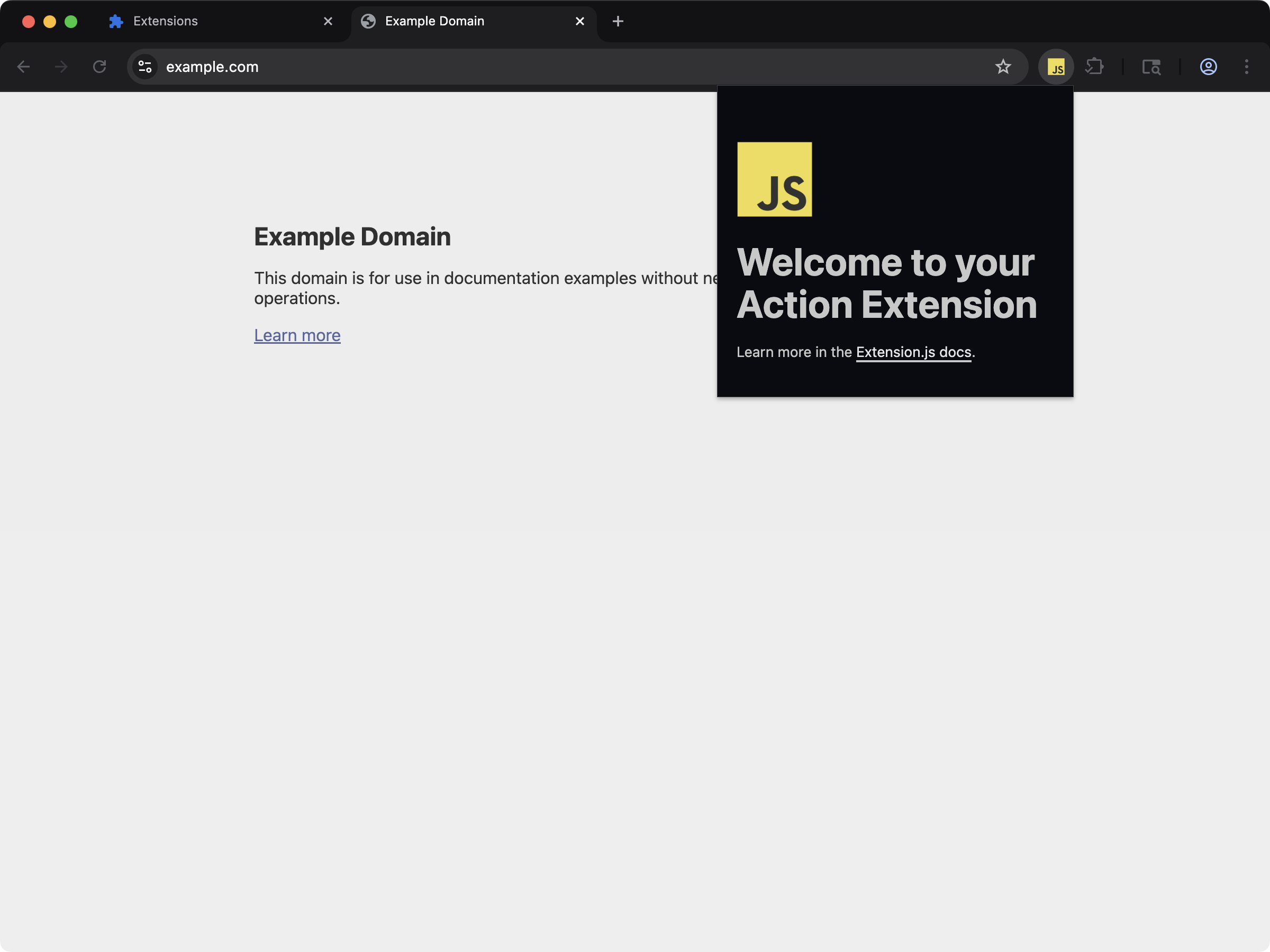 在 `manifest.json` 中宣告工具列圖示的 action 擴充功能。
```bash npm theme={null}
npx extension@latest create my-extension --template=action
```
```bash pnpm theme={null}
pnpx extension@latest create my-extension --template=action
```
```bash yarn theme={null}
yarn dlx extension@latest create my-extension --template=action
```
```bash bun theme={null}
bunx extension@latest create my-extension --template=action
```
```bash bun theme={null}
bunx extension@latest create my-extension --template=action
```
儲存庫:[extension-js/examples/action](https://github.com/extension-js/examples/tree/main/examples/action)
## 圖示能力
| 能力 | 你會獲得的成果 |
| ---------------- | ---------------------- |
| 支援 manifest 圖示欄位 | 為受支援的擴充功能介面驗證並編譯圖示 |
| 路徑解析 | 一致地處理相對與 public 根路徑的圖示 |
| 開發期 watch 更新 | 在本地開發時重新編譯圖示變更 |
| 瀏覽器安全的輸出 | 在擴充功能輸出中以穩定參考輸出圖示資產 |
## 支援的圖示欄位
| Manifest 欄位 | 預期檔案類型 |
| ----------------------------- | --------------------- |
| `action.default_icon` | .png, .jpg, .svg |
| `browser_action.default_icon` | .png, .jpg, .svg |
| `icons` | .png, .jpg, .svg |
| `page_action.default_icon` | .png, .jpg, .svg |
| `sidebar_action.default_icon` | .png, .jpg, .svg (\*) |
| `browser_action.theme_icons` | .png, .jpg, .svg |
在某些瀏覽器中,`sidebar_action.default_icon` 對 `.svg`
的支援目前仍不完整。在此情境使用 SVG 之前請先確認瀏覽器相容性。
## 在 `manifest.json` 中宣告圖示的範例
```json theme={null}
{
"manifest_version": 3,
"name": "My Extension",
"version": "1.0.0",
"icons": {
"16": "icons/icon-16.png",
"48": "icons/icon-48.png",
"128": "icons/icon-128.png"
},
"action": {
"default_icon": "icons/action-icon.png"
}
}
```
## 輸出路徑
典型的圖示輸出:
```plaintext theme={null}
icons/
browser_action/ # for theme_icons
```
## 路徑行為
* Extension.js 從 manifest 資料夾解析相對的圖示路徑。
* 開頭為 `/` 與 `public/...` 的路徑會以擴充功能 public 根目錄的語義來解析。
* Extension.js 可以監看 public 資料夾中的資產,而不必透過圖示功能本身重新輸出。
## 開發行為
* 變更現有圖示檔案會觸發重新編譯。
* 變更 manifest 的圖示進入點參考可能需要重新啟動開發伺服器。
* 缺少必要的圖示檔會造成建置錯誤(某些可選的圖示群組會改為警告)。
## 最佳實務
* 明確宣告 manifest 中的圖示欄位,而不是仰賴附帶的資產 import。
* 提供多種圖示尺寸(`16`、`32`、`48`、`128`),讓瀏覽器各介面顯示更銳利。
* 保持圖示檔名穩定,以減少開發期 manifest 的變動。
* 刻意使用 public 根路徑,並測試最終 manifest 的輸出路徑。
## 後續步驟
* 繼續閱讀 [web-accessible resources](/docs/implementation-guide/web-accessible-resources)。
* 進一步了解 [Special folders](/docs/features/special-folders)。
在 `manifest.json` 中宣告工具列圖示的 action 擴充功能。
```bash npm theme={null}
npx extension@latest create my-extension --template=action
```
```bash pnpm theme={null}
pnpx extension@latest create my-extension --template=action
```
```bash yarn theme={null}
yarn dlx extension@latest create my-extension --template=action
```
```bash bun theme={null}
bunx extension@latest create my-extension --template=action
```
```bash bun theme={null}
bunx extension@latest create my-extension --template=action
```
儲存庫:[extension-js/examples/action](https://github.com/extension-js/examples/tree/main/examples/action)
## 圖示能力
| 能力 | 你會獲得的成果 |
| ---------------- | ---------------------- |
| 支援 manifest 圖示欄位 | 為受支援的擴充功能介面驗證並編譯圖示 |
| 路徑解析 | 一致地處理相對與 public 根路徑的圖示 |
| 開發期 watch 更新 | 在本地開發時重新編譯圖示變更 |
| 瀏覽器安全的輸出 | 在擴充功能輸出中以穩定參考輸出圖示資產 |
## 支援的圖示欄位
| Manifest 欄位 | 預期檔案類型 |
| ----------------------------- | --------------------- |
| `action.default_icon` | .png, .jpg, .svg |
| `browser_action.default_icon` | .png, .jpg, .svg |
| `icons` | .png, .jpg, .svg |
| `page_action.default_icon` | .png, .jpg, .svg |
| `sidebar_action.default_icon` | .png, .jpg, .svg (\*) |
| `browser_action.theme_icons` | .png, .jpg, .svg |
在某些瀏覽器中,`sidebar_action.default_icon` 對 `.svg`
的支援目前仍不完整。在此情境使用 SVG 之前請先確認瀏覽器相容性。
## 在 `manifest.json` 中宣告圖示的範例
```json theme={null}
{
"manifest_version": 3,
"name": "My Extension",
"version": "1.0.0",
"icons": {
"16": "icons/icon-16.png",
"48": "icons/icon-48.png",
"128": "icons/icon-128.png"
},
"action": {
"default_icon": "icons/action-icon.png"
}
}
```
## 輸出路徑
典型的圖示輸出:
```plaintext theme={null}
icons/
browser_action/ # for theme_icons
```
## 路徑行為
* Extension.js 從 manifest 資料夾解析相對的圖示路徑。
* 開頭為 `/` 與 `public/...` 的路徑會以擴充功能 public 根目錄的語義來解析。
* Extension.js 可以監看 public 資料夾中的資產,而不必透過圖示功能本身重新輸出。
## 開發行為
* 變更現有圖示檔案會觸發重新編譯。
* 變更 manifest 的圖示進入點參考可能需要重新啟動開發伺服器。
* 缺少必要的圖示檔會造成建置錯誤(某些可選的圖示群組會改為警告)。
## 最佳實務
* 明確宣告 manifest 中的圖示欄位,而不是仰賴附帶的資產 import。
* 提供多種圖示尺寸(`16`、`32`、`48`、`128`),讓瀏覽器各介面顯示更銳利。
* 保持圖示檔名穩定,以減少開發期 manifest 的變動。
* 刻意使用 public 根路徑,並測試最終 manifest 的輸出路徑。
## 後續步驟
* 繼續閱讀 [web-accessible resources](/docs/implementation-guide/web-accessible-resources)。
* 進一步了解 [Special folders](/docs/features/special-folders)。